
Constant Color API: Technology Review & Demos

Colors are Clearer Than Ever Before: Constant Color API Review
The human visual system adapts to a wide range of lighting conditions, from warm sunlight to the cool glow of office fixtures. Yet, a smartphone camera applies numerous system-level processing steps and enhancements.
As a result, the same color sample can appear differently under varying illumination or on different devices. In a professional environment, such inconsistency leads to significant waste of time and resources.
In this article, the It-Jim mobile app development team explores how smartphones process images, what factors influence color consistency, and examines the Constant Color API presented by Apple.
In Search of Constant Color
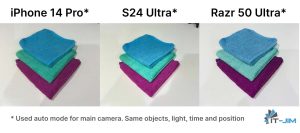
The root cause of color inconsistency lies in the hardware and software processing. Modern smartphone cameras rely on a series of automated adjustments known collectively as the 3A pipeline.
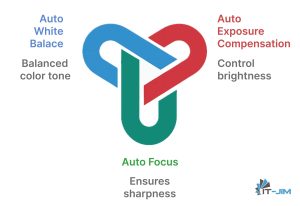
First, Auto-Focus analyzes contrast in the scene to lock onto the sharpest subject. Then Auto-Exposure measures overall brightness and adjusts shutter speed and aperture. Finally, Auto-White-Balance estimates the scene’s color temperature, whether warm incandescent light or cool daylight, and applies corrective tint so that whites appear neutral.
All of these decisions draw on built-in light meters and computer vision (CV) before the sensor data proceeds to multi-frame fusion and further enhancement.
A mobile application that delivers a stable color signal regardless of lighting conditions can become a competitive advantage for both end users and enterprise customers.
Context of Existing Solutions
Let’s examine how modern smartphones process images “under the hood” and why this affects color consistency across devices.
The simplified flow diagram below illustrates the overall pipeline.

Smartphone cameras begin by capturing light through a grid of red, green, and blue filters and then reconstruct a full-color image by filling in the missing data.
They automatically adjust focus, exposure, and white balance before blending multiple exposures and reducing noise to produce a clear, well-lit photo. While these steps make images look good, each phone’s unique processing can shift colors so that the same scene may appear differently on different devices.
Some newer smartphones even replace the entire sequence with a single deep-learning-based image-signal-processing model (DeepISP). One common workaround uses physical color targets, such as the X-Rite ColorChecker, or laboratory-grade spectrophotometers, which provide reference spectral data but are bulky and expensive.

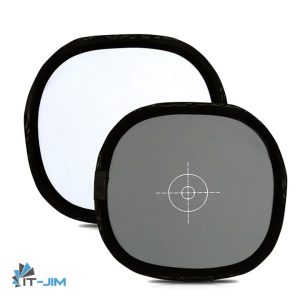
Another approach is to calibrate the camera using a white and/or gray card of known reflectance. By using the card as a reference, photographers can ensure that colors will accurately reproduce and that the image is correctly exposed.
However, this method requires manual setup and cannot guarantee perfect results, especially when the device is in motion or the lighting is changed.
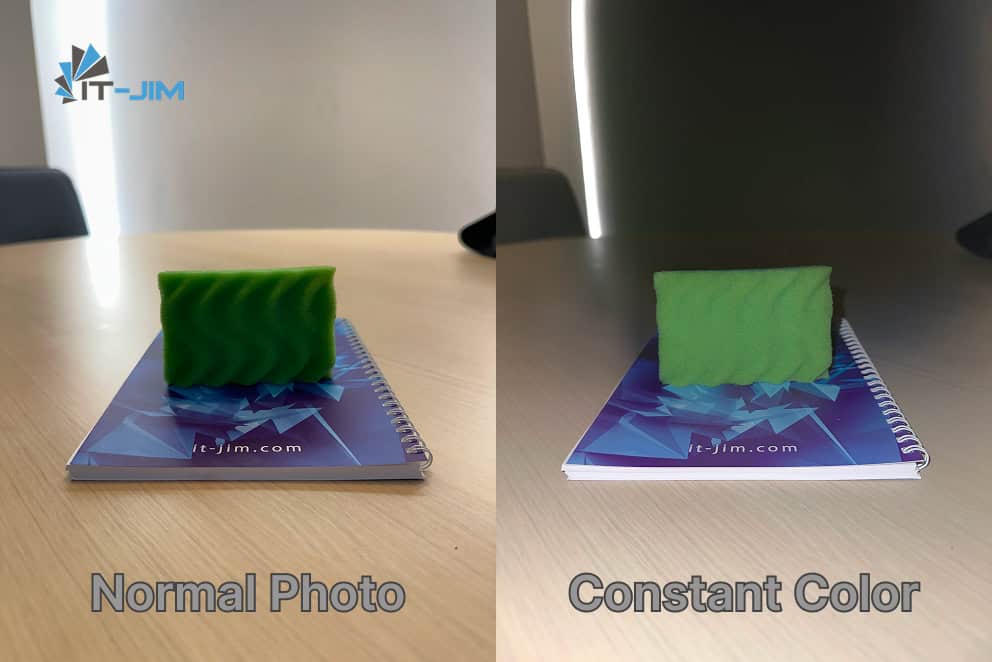
In iOS 18, Apple introduced the Constant Color API framework, which activates a dedicated “studio” flash mode to capture images with a neutral white balance regardless of ambient light sources.
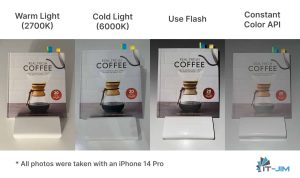
Conventional pipelines such as 3A, HDR fusion, denoising, and tone mapping are unsuitable for exact color measurement, while producing visually pleasing results for general viewers. Physical targets and spectre-processing devices remain impractical for mobile applications.
The Constant Color API and similar “studio-lighting” approaches combine ease of use with accuracy, delivering both stable color captures and per-pixel confidence data. These outputs enable advanced features such as extracting the exact color of a selected region of interest.
Taming the Constant Color API
To obtain a “studio”-quality image free from color distortion, we selected the Constant Color API in AVCapturePhotoOutput, available from iOS 18 onward.
In this mode, the system fires the device’s built-in flash at a fixed spectrum and locks the white balance regardless of ambient lighting. In addition to the image itself, the API returns a confidence map that enables assessment of measurement accuracy within a selected region.
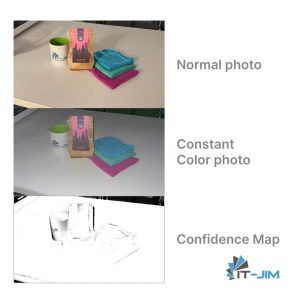
It is important to note certain device limitations. The mode is supported only on hardware with a sufficiently powerful flash (iPhone 14 and newer). It disables manual exposure control and requires RAW capture to be turned off. In very low‐light conditions without enough reflected flash, the quality of the confidence map may degrade.
To leverage the Constant Color API, a specific AVCaptureSession configuration is required:
func setupCaptureSession() {
    defer { captureSession.commitConfiguration() }

    // Some default setup for AVCaptureSession
    captureSession.beginConfiguration()
    captureSession.sessionPreset = .photo
    // setup AVCaptureDeviceInput, AVCaptureDeviceOutput,
    // AVCaptureDevice, depth data and quality

    // Special option for Constant Color API

    // A BOOL value specifying whether constant color capture is supported
    // This property returns YES if the session's current configuration allows
    // photos to be captured with constant color. When switching cameras
    // or formats this property may change
    photoDataOutput.isConstantColorEnabled = photoDataOutput.isConstantColorSupported
}
In the AVCapturePhotoCaptureDelegate, the AVCapturePhoto object now exposes additional properties:
- constantColorConfidenceMap – a pixel buffer with the same aspect ratio as the constant color photo, where each pixel value (unsigned 8-bit integer) indicates how fully the constant color effect has been achieved in the corresponding region of the constant color photo – 255 means full confidence, 0 means zero confidence.
- constantColorCenterWeightedMeanConfidenceLevel – score summarizing the overall confidence level of a constant color photo.
func photoOutput(
    _ output: AVCapturePhotoOutput,
    didFinishProcessingPhoto photo: AVCapturePhoto,
    error: Error?
) {
    if photo.isConstantColorFallbackPhoto {
        normalPhotoImage = // convert AVCapturePhoto to UIImage and save
        // Return for waiting next photo with Constant Color data
        return
    }

    // Save Constant Color image photo
    constantColorPhotoImage = // convert AVCapturePhoto to UIImage

    // Get Confidence Map pixel buffer
    let photoConfidenceMap: CVPixelBuffer = photo.constantColorConfidenceMap

    // Save Confidence Map image photo
    confidenceMapImage = // convert CVPixelBuffer to UIImage


    // Set parameters of ROI
    let roiSize: Int = 30    // in pixels
    var roiColor: UIColor? = nil
    var roiConfidence: Float? = nil


    // Get color of ROI
    guard let cgImage = constantColorPhotoImage.cgImage else { return }

    // Init rect for ROI (zone in center of photo)
    let rect = CGRect(
        x: (cgImage.width - roiSize) / 2,
        y: (cgImage.height - roiSize) / 2,
        width:  roiSize,
        height: roiSize
    )

    // averageColor is our special UIImage extension next
    roiColor = // calculate color from constantColorPhotoImage by rect

    // Calculate confidence for ROI
    if let avgGray = confidenceMapImage?.averageColor(rect: rect) {
        var white: CGFloat = 0
        var alpha: CGFloat = 0
        avgGray.getWhite(&white, alpha: &alpha)
        roiConfidence = Float(white)
    }

    // Return feedback for sharing info about photos and colors
}
It is important to recognize that the chosen region of interest (ROI) size critically affects color accuracy.
Through experimentation, we discovered that regions smaller than 20×20 pixels yield technically correct readings but tend toward muted, pastel tones. Besides, regions larger than 50×50 pixels preserve saturation more faithfully, yet the extracted color often blends into a grayer spectrum, losing its special hue.
To compute the region’s average color, we implemented a UIImage extension that accepts a CGRect parameter, applies a Core Image filter to the specified area, and returns the resulting UIColor.
func averageColor(rect: CGRect) -> UIColor? {
    let ciAvgFilterName = "CIAreaAverage"

    // Crop original CGImage to specified rect
    guard let cgImage = cgImage?.cropping(to: rect) else {
        return nil
    }
    // Create CIImage from cropped CGImage for usage CIFilter
    let ciImage = CIImage(cgImage: cgImage)

    // Init avg filter by name
    guard let filter = CIFilter(name: ciAvgFilterName) else {
        return nil
    }

    // Set the input image for the filter
    filter.setValue(ciImage, forKey: kCIInputImageKey)

    // Obtain the filter output, which is a 1×1 CIImage representing average color
    guard let output = filter.outputImage else {
        return nil
    }

    // Prepare buffer to hold RGBA8 pixel data
    var bitmap = [UInt8](repeating: 0, count: 4)

    // Render the CIImage into the buffer to extract pixel bytes
    CIContext().render(
        output,
        toBitmap: &bitmap,
        rowBytes: 4,
        bounds: CGRect(x: 0, y: 0, width: 1, height: 1),
        format: .RGBA8,
        colorSpace: CGColorSpaceCreateDeviceRGB()
    )

    // Convert RGBA8 bytes into UIColor normalized to [ 0, 1 ] range
    return UIColor(
        red:   CGFloat(bitmap[0]) / 255,
        green: CGFloat(bitmap[1]) / 255,
        blue:  CGFloat(bitmap[2]) / 255,
        alpha: 1
    )
}
Project Demo Video and Images
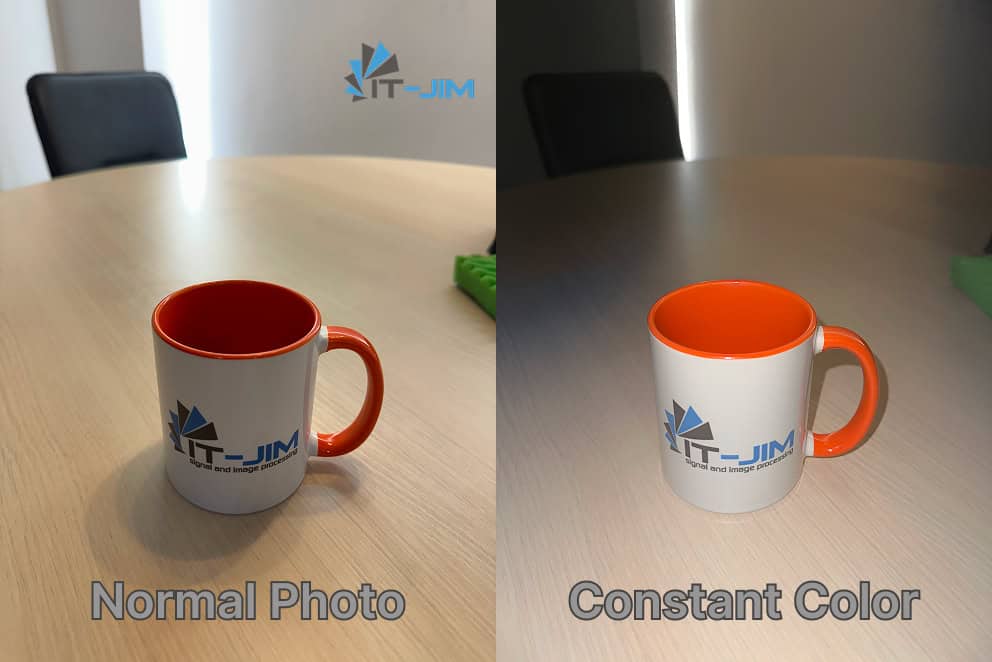
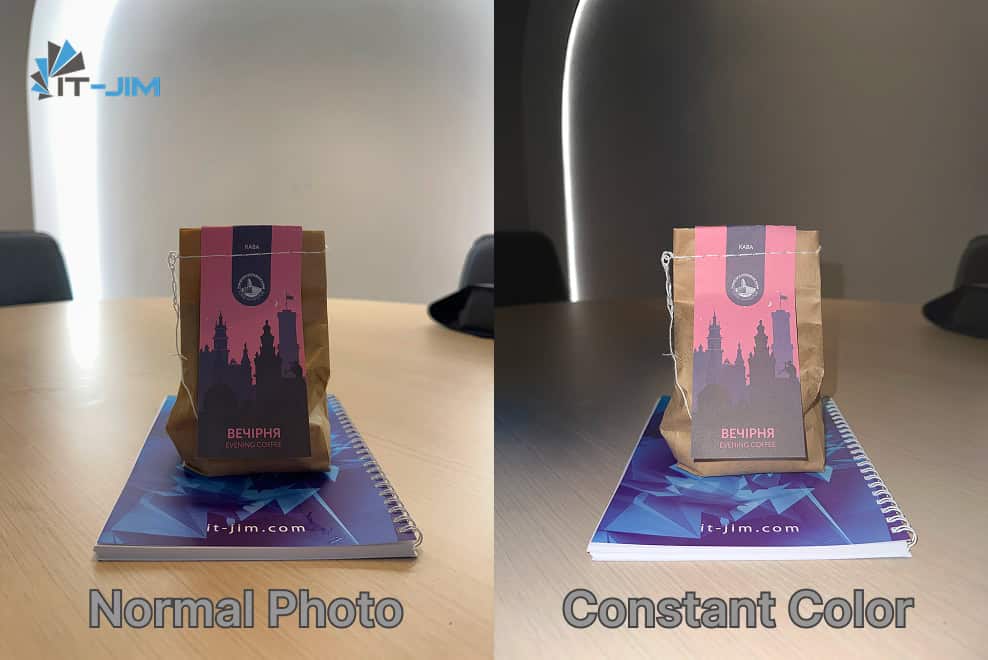
The specialized configuration phase is complete, and now we move on to the demo. To showcase the logic we have implemented, we will recreate a user interface composed of a Main View featuring a Capture Button and a separate Preview View.
In the Preview View, we will present four interactive cards: Color, Confidence Map, Constant Photo, and Normal Photo. On the Color card, we will add functionality to find the closest matching RAL palette color based on the captured RGB values.
 |
 |
 |
Let’s Finalize About the Constant Color API
Accurate color measurement in the field remains a nontrivial challenge: the spectral characteristics of light sources, surface properties, and the camera’s internal processing all introduce their distortions.
Our implementation based on the Constant Color API shows that on modern devices, by using a controlled “studio” flash and a per-pixel confidence map, one can closely approximate the true hue: the resulting images render object and surface colors far more naturally, narrowing the gap between digital capture and human perception under neutral (diffuse) lighting.
It must be remembered again that this method does not guarantee 100 % correlation with the optical spectrum. In the real world, factors such as material, surface roughness, ambient light, and camera angle still require additional compensation. However, access to pixel-level confidence and the ability to programmatically filter out “weak” regions open new horizons for mobile color-measurement solutions.
Looking ahead, integration of machine-learning models for advanced spectral correction promises further gains – each year, these networks become more capable of inferring true colors despite variable lighting.
Yet even today, the Constant Color API represents a powerful tool for achieving far more natural color reproduction than previously available methods.
How would you apply this technology? Can our current handheld devices truly see and convey pure color to us?
