

3D Reconstruction on iOS: Ultimate Guide with Code Samples

Ultimate Tutorial to 3D Reconstruction on iOS: Key Techniques, Differences, & Workflow
In the fast-changing world of mobile technology, 3D model reconstruction on handheld devices is a big leap forward. Algorithms like SLAM, Voxel-Based Reconstruction, and Point Cloud Reconstruction help create 3D models from captured images.
Traditionally, these computationally intensive processes required desktop computers. In contrast, mobile devices are limited to data collection due to their constrained CPU/GPU, memory, and storage.
Apple’s ObjectCapture has changed the game. It enables high-quality 3D model creation directly on mobile devices.
Introduced at WWDC21 for macOS, the technology was initially used for data collection on iOS devices. From WWDC23 and iOS 17, ObjectCapture now supports full 3D reconstruction on iPhones and iPads.
This comprehensive guide on building 3D reconstruction solutions will cover:
- ObjectCapture’s features for capturing objects and creating 3D reconstructions.
- Different output data structures of ObjectCapture.
- Limitations encountered during ObjectCapture integration.
- Real-world use cases of ObjectCapture for 3D reconstruction on iOS.
- Alternative data capture methods: RoomPlan, AVCaptureSession, Photogrammetry.
- Code samples for each data capture method.
- A detailed comparison of data-capturing methods for the best results.
Let’s start by examining the workflow and specifics of ObjectCapture.
Overview of ObjectCapture Workflow for 3D Reconstruction
It is essential to understand the general workflow for creating a 3D object directly on an iPhone or iPad using the ObjectCapture API.
The entire process can be divided into two main stages:
- Capturing the input data
- Reconstructing the object with the captured data
In the first stage, you use your device’s camera to take many photos of the object from various angles. The quality and coverage of these images directly impact the accuracy of the final 3D reconstruction model.
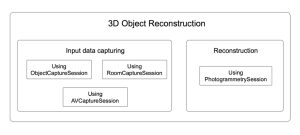
During the second stage, the ObjectCapture API processes the captured images. The API checks the photos and combines them to make a detailed 3D visualization of the object, including precise texture, color, and shape.
Interested to learn about 3D reconstruction on iOS and other innovative technologies?
Reach out to our team for an individual consultation. Learn how to utilize 3D computer vision services and machine learning capabilities in your business or next big project. With a deep understanding of technologies and 10+ years of experience, we ensure you achieve the most value and results.
3D Reconstruction on iOS with ObjectCapture API
ObjectCapture API is a tool for high-quality data capture.
Data capture is the essential step in 3D object reconstruction. This process is not just about snapping a few photos. It is about preparing the foundation for a precise and detailed 3D model.
The accuracy and quality of the final 3D reconstruction on iOS are directly tied to how well the images are taken. Recording every angle and detail of the object ensures the most accurate and realistic result.
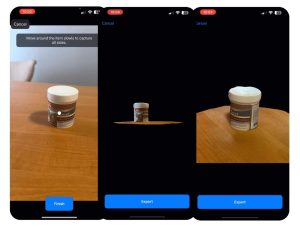
The capturing process splits into “scan passes.” These substages create images of the object from different angles and collect extra data. ObjectCapture’s UI shows areas where more images are needed and gives tips to improve shot quality.
ObjectCapture has an easy-to-use interface. It helps users collect data and offers visual cues to navigate around the object. It captures frames, records camera poses, and creates depth maps automatically. This makes the 3D reconstruction process easy and accessible for users.
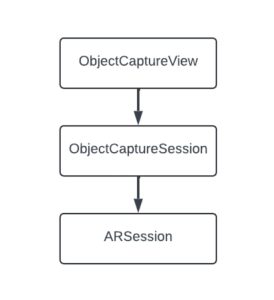
Thus, this functionality integrates into the app using:
- ObjectCaptureView provides a user interface that guides the user through the capturing flow.
- ObjectCaptureSession performs data capturing and prepares the data source for further reconstruction.
- Behind the scenes, ObjectCaptureSession relies on ARSession.
1. Object Capture View
ObjectCaptureView is a high-level SwiftUI view that encapsulates the entire image capture experience. It provides built-in guidance, visual instructions, and progress tracking as the user walks around an object or environment.
Although ObjectCaptureView is a SwiftUI view, Apple has made it easy to integrate this interface into UIKit-based apps using UIHostingController.
This aspect is beneficial for projects that still rely on UIKit but want to take advantage of the latest AR and 3D technologies provided by SwiftUI.
Here’s a simple code example of how to embed ObjectCaptureView into a UIViewController:
struct CaptureView: View {
    // MARK: - Properties
    private let session: ObjectCaptureSession

    // MARK: - Init
    init(session: ObjectCaptureSession) {
        self.session = session
    }

    // MARK: - Body
    var body: some View {
        ZStack {
            ObjectCaptureView(
                session: session,
                cameraFeedOverlay: {
                    CameraFeedOverlayView()
                }
            )
        }
    }
}
Then, create a UIHostingController with CaptureView as the rootView and add UIHostingController’s view as a subview to your view.
let hostingController = await UIHostingController(rootView: CaptureView(session: session))

view.addSubview(hostingController.view)
2. Object Capture Session
The ObjectCaptureSession class manages the image capture workflow, dividing the process into structured stages to ensure optimal data collection.
Users are guided through each stage via the ObjectCaptureView, which overlays helpful instructions and feedback directly onto the camera interface.
Let’s take a look at an example of how to utilize ObjectCaptureSession to capture images for 3D reconstruction on iOS.
For this purpose, we created an ObjectCaptureService, which is responsible for managing all stages of data capture using ObjectCaptureSession:
protocol ObjectCaptureService {
    // MARK: - Publishers
    var eventPublisher: AnyPublisher<ObjectCaptureServiceEvent, Never> { get }

    // MARK: - Functions
    func setImagesFolder(folder: URL)

    func getPointCloudView()

    func isFlippableObject(completion: @escaping (Bool) -> ())
    func start()
    func finish()
    func pause()
    func resume()
    func cancel()
    func startDetecting()
    func resetDetecting()
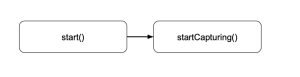
    func startCapturing()
    func beginNewScanPass()
    func beginNewScanPassAfterFlip()
}
First, we need to initialize the ObjectCaptureSession.
To start the session, we provide a path to the folder where the captured images will be saved.
func start() {
        Task { [weak self] in
            if self?.session != nil {
                self?.resetSession()
            }
            self?.session = await ObjectCaptureSession()

            guard
                let session = self?.session,
                let imagesFolderUrl = self?.imagesFolderUrl
            else {
                self?.eventSubject.send(.failed(errorMessage: "Unable to create session"))
                return
            }

            var configuration = ObjectCaptureSession.Configuration()
            configuration.isOverCaptureEnabled = true

            await session.start(
                imagesDirectory: imagesFolderUrl,
                configuration: configuration
            )

            self?.setupBindings()

            await self?.eventSubject.send(.captureView(view: .init(rootView: .init(session: session))))
        }
    }
We must set up bindings to receive updates on camera tracking, session state, and completed scan passes. This action helps us manage the session and give users the proper instructions.
func setupBindings() {
        tasks.append(
            Task { [weak self] in
                guard let session = self?.session else {
                    return
                }
                for await cameraTracking in await session.cameraTrackingUpdates {
                    self?.cameraTrackingState = cameraTracking
                }
            }
        )

        tasks.append(
            Task { [weak self] in
                guard let session = self?.session else {
                    return
                }
                for await sessionState in await session.stateUpdates {
                    self?.sessionState = sessionState
                }
            }
        )

        tasks.append(
            Task { [weak self] in
                guard let session = self?.session else {
                    return
                }
                for await scanPassUpdate in await session.userCompletedScanPassUpdates {
                    self?.eventSubject.send(.scanPassCompleted(success: scanPassUpdate))
                }
            }
        )
    }
3. Object Mode
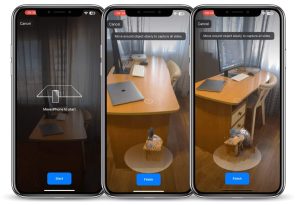
In Object mode, ObjectCapture focuses on 3D scanning distinct items placed on a surface.
This mode is perfect for digitizing individual products or artifacts. The bounding box becomes particularly important here, helping to estimate the object’s real-world dimensions and ensuring accurate scaling.
Object mode is most effective when the target item is well-lit, visually distinct from the background, and positioned so the user can easily walk around it. The mode supports single-side or multi-side captures based on the object’s orientation and complexity.
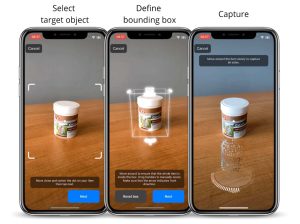
After selecting an object to capture, it is necessary to define its bounding box. ObjectCaptureView allows users to adjust its position and size to ensure sufficient coverage easily. This stage is critical to ensure that the size of the produced model will be close to the real-life one. Also, it helps with further user guidance through flow capturing.
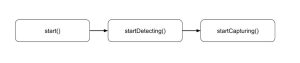
Therefore, capturing the object in 3D involves three steps:
- Selecting a target object.
- Defining a bounding box.
- Capturing an object.
These steps correspond to the methods of ObjectCaptureSession:
In Object mode, ObjectCapture indicates if an object is flippable, prompting users to rotate the object and recapture it. Although this process requires redefining the bounding box, it ensures that the 3D reconstruction fully captures all sides of the object.
4. Area Mode
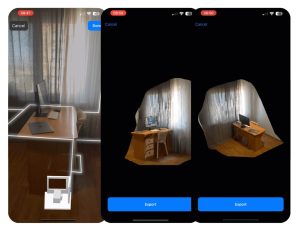
Area mode expands ObjectCaptureView’s scanning capabilities beyond single objects, enabling users to capture large physical spaces such as rooms, hallways, large installations, and entire environments.
This mode is helpful for applications that require a spatial understanding of surroundings, such as interior design, architecture, construction, and real estate.
In this mode, the user is guided to move around a space, capturing overlapping images from different angles and heights.
Unlike Object mode, where the subject is central and isolated, Area mode requires broader spatial scanning and more extensive user movement.
In Area mode, there is no need to define a bounding box, which simplifies the capturing process into two steps:
3D Reconstruction on iOS: Pros & Cons of Object Capture API
While the ObjectCapture API simplifies image capturing and provides a user-friendly experience, there are also some limitations to be aware of when integrating it into apps.
The advantages of using 3D reconstruction on iOS include:
1. Integrated visual guidance
Provides real-time visual cues that help users properly scan an object or scene. It highlights areas that require more image coverage and offers feedback on image quality and coverage.
2. Flippable object support
The API detects whether an object should be flipped to capture unseen areas. This feature leads to more complete reconstructions, especially for complex shapes.
3. Automatic frame capturing
Frames are captured automatically when optimal angles and stability are detected. This functionality reduces motion blur and ensures even spacing, simplifying the workflow and improving output quality.
4. Platform-optimized and energy-efficient
Object Capture is aware of system resources, dynamically adjusting capture behavior to maintain efficiency on iPhone and iPad.
The disadvantages of creating 3D reconstruction solutions with ObjectCapture are as follows:
1. Fixed image format
All captured images are stored in HEIC format. While efficient, this may not be a good match if you need other image formats in specific cases.
2. Limited customization of capture flow
Developers can not modify camera behavior, such as frame capture rate, focus, or exposure.
3. No real-time frame access
Captured frames are not accessible in real-time, which restricts the ability to run custom processing (such as machine learning or computer vision tasks). There are still options to access frames during capturing, but ObjectCapture does not provide an API for this function.
4. Non-customizable capture UI
The default ObjectCaptureView has a fixed appearance and user interaction flow. Developers can not modify styling, which can be limiting for apps that require a customized or branded UI.
Data Capturing with RoomPlan
Apple RoomPlan API is a robust framework that helps developers capture and map indoor environments accurately.
It leverages the power of iPhone sensors, such as LiDAR technology, to create 3D model reconstruction of room layouts, including structures such as walls, furniture, and doors.
The framework provides RoomCaptureSession, which allows developers to capture an entire room or environment seamlessly. This technology is ideal when the goal is to map a whole indoor space and understand the relationship between different objects within that space rather than focusing on a specific object.
RoomCaptureSession extends ARSession by adding the capability to scan and map entire indoor environments, reconstructing the layout of a room along with its structures, such as walls, furniture, and doors.
This scan produces a 3D reconstruction that captures the space’s general structure and geometry. You can utilize PhotogrammetrySession to achieve a more detailed reconstruction with fine textures, subtle color variations, and intricate details.
Using this approach, we can capture frames with ARSession and process them with PhotogrammetrySession while obtaining the data that RoomCaptureSession captured.
Room Plan Benefits of 3D Reconstruction on iOS
By combining these datasets, developers can significantly enrich their models. This combined approach allows the following advantages of 3D reconstruction:
1. Incorporating texture and color
RoomCaptureSession provides structural data of a room, while PhotogrammetrySession can capture detailed textures and colors. This approach makes the environment feel more lifelike and visually appealing. This can be particularly useful for interior design apps, architectural 3D visualizations, and furniture previews.
2. Reconstructing entire rooms
This approach creates immersive AR experiences where users can interact with the entire environment rather than just isolated objects.
RoomPlan: Code Implementation and Key Considerations
To integrate RoomCaptureSession for capturing objects in 3D, we created a separate service called RoomCaptureService.
protocol RoomCaptureService {
    // MARK: - Publishers
    var eventPublisher: AnyPublisher<RoomCaptureServiceEvent, Never> { get }

    // MARK: - Functions
    func setup(configuration: RoomCaptureConfiguration)

    func start()
    func pause()
    func stop()
}
We need to conform our service to two delegates:
- RoomCaptureSessionDelegate to receive RoomCapturedData.
- ARSessionDelegate to handle individual frames.
To avoid capturing redundant frames, we implemented frame validation logic. There are several options to do that.
One approach is to compare the camera transform’s position and angle of the current frame with the previous one.
If they are nearly identical, the frame is skipped; if they differ, the frame is saved. This method significantly reduces frame count while preserving key frames.
func isValidFrame(currentTransform: simd_float4x4) -> Bool {
        guard let previousTransform else {
            self.previousTransform = currentTransform
            return true
        }

        let angle = currentTransform.angle(to: previousTransform)
        let distance = currentTransform.distance(to: previousTransform)

        guard
            angle > (RoomCaptureConstants.rotationThreshold / 180) * .pi ||
            distance > RoomCaptureConstants.distanceThreshold
        else {
            return false
        }
        self.previousTransform = currentTransform

        return true
   }
Another option is to use the frame timestamp and compare it against a specified FPS (frames per second) to reduce the number of frames captured.
func isValidFrame(currentTimestamp: Double, fps: Int) -> Bool {
        guard let previousTimestamp else {
            self.previousTimestamp = currentTimestamp
            return true
        }

        let difference = currentTimestamp - previousTimestamp
        let framesCapturingTimeDelta = 1 / Double(fps)
        if difference >= framesCapturingTimeDelta {
            self.previousTimestamp = currentTimestamp
            return true
        } else {
            return false
        }
    }
Pros & Cons: 3D Reconstruction on iOS with Room Plan
Now, let’s examine the advantages and disadvantages of using ARSession when capturing photogrammetry and 3D object reconstruction data.
Advantages of 3D reconstruction with RoomPlan:
- Provides rich spatial data: meshes, camera positions, and scene structure.
- Includes RGB and depth data.
- It is useful when capturing and reconstructing entire rooms and spaces.
- You can obtain real-time frames for custom processing.
Disadvantages of using RoomPlan for 3D reconstruction:
- Not optimized for isolated object capture.
- 3D reconstructions may lack fine details or have sections that appear blurry.
- Developers must implement custom logic for frame validation and capture flow to ensure helpful photogrammetry input.
- Developers need to implement user guidance for high-quality results.
Data Capturing with AVCaptureSession
AVCaptureSession is another powerful component of the AVFoundation framework that grants full access to camera input on iOS devices.
This technology allows developers to create highly customizable and versatile capture experiences, providing the ability to capture still images, record videos, and handle metadata with complete control.
With AVCaptureSession, you can fine-tune nearly every aspect of image and video capture, such as image resolution, exposure, white balance, and focus. These features allow developers to adapt the capture process to meet specific requirements. Depending on your needs, AVCaptureSession can be tailored to provide manual or automatic frame capturing.
AVCaptureSession can capture high-quality, still photos from various angles for 3D object reconstruction using PhotogrammetrySession. Unlike ObjectCaptureSession, it allows you to fully customize the user interface (UI) and the capture experience.
Benefits of Using AVCaptureSession for 3D Reconstruction
You can design your UI to match the specific needs of your application, whether it’s guiding users through the scanning process or providing manual controls for advanced users, namely:
-
On-screen overlays and instructions
You can implement custom on-screen overlays that guide users step-by-step through 3D scanning on iOS. This approach can include visual cues, like highlighting the area to focus on, showing the ideal positioning for objects, or displaying a progress bar indicating when enough frames have been captured.
-
Interactive experience
Developers can add interactive elements that allow users to manually adjust camera settings such as focus, exposure, or resolution.
-
Automatic or manual capture modes
Developers can use AVCaptureSession to create different user experiences. If your app lets users move around an object, it can capture frames automatically.
If they need to take photos manually, AVCaptureSession can handle that, too. This functionality allows you to design the flow and capture the best experience.
AVFoundation provides access to supplementary data, such as depth information and camera calibration, along with captured frames. You can use this for advanced processing or specific data capture needs.
AVCaptureSession: Code Implementation and Key Considerations
To implement frame capturing with AVCaptureSession, we created a service called AVSessionManager.
protocol AVSessionManager: AnyObject {
    // MARK: - Publishers
    var eventPublisher: AnyPublisher<AVSessionManagerEvent, Never> { get }

    // MARK: - Functions
    func setup(mode: AVCaptureMode) -> AVCaptureVideoPreviewLayer

    func start()
    func stop()

    func capture()
    func focus(on point: CGPoint)
}
There are several options for capturing frames for object reconstruction using AVCaptureSession.
The first option is to use AVCapturePhotoOutput for manual capture. Here, the user must take the needed number of photos.
AVCapturePhotoOutput provides high-quality images and allows customization of photo settings (e.g., format). It can also capture depth data if available. When you save the photo with fileDataRepresentation, it also automatically saves the metadata and depth data.
When users take photos manually, they might miss some parts of the object. This can lead to not having enough common points for photogrammetry. Additionally, this method can be inconvenient for end-users.
Thus, to capture frames using AVCapturePhotoOutput, we must do a few things:
- Add photo output to the capture session.
- Set up the photo settings.
- Implement the AVCapturePhotoCaptureDelegate protocol to manage the captured photos.
  // MARK: - Photo settings
private extension AVSessionManagerImpl {
    func getPhotoSettings() -> AVCapturePhotoSettings {
        var settings = AVCapturePhotoSettings()

        if photoDataOutput.availablePhotoCodecTypes.contains(.hevc) {
            settings = AVCapturePhotoSettings(format: [AVVideoCodecKey: AVVideoCodecType.hevc])
        }

        settings.embedsDepthDataInPhoto = true
        settings.photoQualityPrioritization = .quality
        settings.isDepthDataDeliveryEnabled = photoDataOutput.isDepthDataDeliverySupported

        return settings
    }
}


// MARK: - AVCapturePhotoCaptureDelegate
extension AVSessionManagerImpl: AVCapturePhotoCaptureDelegate {
    func photoOutput(
        _ output: AVCapturePhotoOutput,
        didFinishProcessingPhoto photo: AVCapturePhoto,
        error: Error?
    ) {
        eventSubject.send(.photo(photo: photo))
    }
}
Save the captured photo using fileDataRepresentation in the image folder. This way, it can be used later in the PhotogrammetrySession.
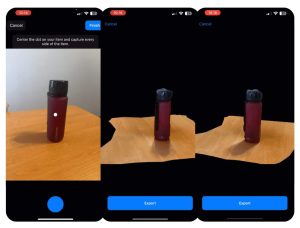
Another option is to use AVCaptureVideoDataOutput with a specified frame rate.
In this case, frames are captured and saved automatically. The user just needs to move the camera around the object they want to capture.
Yet, additional setup is required to capture depth data along with the RGB frames.
Furthermore, when you save an image from a CMSampleBuffer, the metadata and depth data necessary for 3D reconstruction on iOS aren’t automatically saved with the image. We must handle this explicitly during the saving process.
We need to do a few things to save everything correctly:
- First, convert the CMSampleBuffer to a CGImage.
- Then, extract the metadata from the CMSampleBuffer.
- Finally, save the image, metadata, and depth data using CGImageDestination to the designated image folder.
 func saveImageWithMetadata(
        to url: URL,
        cgImage: CGImage,
        metadata: [String: Any],
        depth: AVDepthData?
    ) -> URL? {
        guard
            let destination = CGImageDestinationCreateWithURL(url as CFURL, AVFileType.heic as CFString, 1, nil)
        else {
            return nil
        }
        CGImageDestinationAddImage(destination, cgImage, metadata as CFDictionary)
        if var depthDict = depth?.dictionaryRepresentation(forAuxiliaryDataType: nil) {
            depthDict.removeValue(forKey: kCGImageAuxiliaryDataInfoMetadata)
            CGImageDestinationAddAuxiliaryDataInfo(
                destination,
                kCGImageAuxiliaryDataTypeDisparity,
                depthDict as CFDictionary
            )
        }

        if !CGImageDestinationFinalize(destination) {
            return nil
        }

        return url
    }


 func process(
        buffer: CMSampleBuffer,
        depth: AVDepthData?,
        index: Int
    ) {
        guard let outputFolder else {
            return
        }

        processingQueue.addOperation { [weak self] in
            let frameName = "\(index)_\(OutputProcessingConstants.frameFileName)"
            let url = outputFolder.appendingPathComponent(frameName)
            guard let cgImage = buffer.cgImage else {
                return
            }

            let metadata = CMCopyDictionaryOfAttachments(
                allocator: kCFAllocatorDefault,
                target: buffer,
                attachmentMode: kCMAttachmentMode_ShouldPropagate
            ) as? [String: Any] ?? [:]
            guard
                let rgbFile = self?.saveImageWithMetadata(
                    to: url,
                    cgImage: cgImage,
                    metadata: metadata,
                    depth: depth
                )
            else {
                self?.eventSubject.send(.error(message: "Failed to save image"))
                return
            }

            self?.eventSubject.send(.output(url: rgbFile))
        }
    }
Pros & Cons of AVCaptureSession for 3D Reconstruction
When using AVCaptureSession for 3D object reconstruction, it is vital to consider its flexibility and challenges.
Advantages of using AVCaptureSession as a 3D reconstruction solution:
- Complete control over image capture parameters, allowing for precise customization.
- Ideal solution for custom capture workflows.
- Easy to integrate with custom user interfaces or capture guidance overlays.
- Real-time access to frames for custom processing.
- Capability to capture and save additional data, such as depth data and camera calibration.
- It supports saving frames in various image formats, including HEIC, JPEG, etc.
Disadvantages of utilizing AVCaptureSession for 3D reconstruction on iOS:
- It requires manual implementation and organization of image saving.
- No automatic mesh generation or object detection.
- More development effort is needed to create a fully functional scanning experience.
- It may not produce the highest quality 3D models compared to results obtained with ObjectCaptureSession.
3D Reconstruction on iOS: Comparison Table of Object Capturing Methods
Let’s make a final comparison to summarize the main distinctions among ObjectCaptureSession, RoomCaptureSession, and AVCaptureSession.
The table below provides a clear overview and helps you determine which 3D reconstruction solution best fits your automation, flexibility, and data richness needs.
| Criteria | ObjectCaptureSession | RoomCaptureSession | AVCaptureSession |
| User Guidance | Built-in visual guidance and quality feedback | Semantic feedback only (e.g., walls, doors highlighted); no active guidance | Fully custom implementation required |
| Automation | Auto frame capture at optimal angles | Manual frame capture and logic implementation | Manual frame capture and logic implementation |
| Real-time Frame Access | No | Yes | Yes |
| Camera Parameter Control | No control | No control | Full control (focus, exposure, etc.) |
| UI Customization | Limited | Limited | Fully customizable |
| Data Richness | Only RGB images in HEIC format | RGB, depth, mesh, camera transform | RGB, depth, calibration data |
| Supported Image Formats | Only HEIC format | HEIC, JPEG, and more | HEIC, JPEG, and more |
| Scene Coverage | Supports flippable object logic for full coverage | Great for full-room reconstruction | Requires manual logic to ensure sufficient coverage |
| Mesh Generation | No | Provides a mesh of the room, environment | No |
| Ideal For | Isolated object reconstruction with minimal setup | Room-scale scanning and reconstruction | Custom capture workflows with high flexibility |
| Development Effort | Minimal, high-level API | Moderate, custom logic needed | High, everything must be implemented manually |
| Output Quality | High quality for objects, moderate for areas | Moderate, can lack fine detail | Varies, depends on implementation and captured images |
Photogrammetry: 3D Reconstruction Technology
Photogrammetry is a technique for reconstructing 3D models. It analyzes multiple overlapping 2D images of an object or environment to find key points, measure their relative positions, and rebuild the object’s shape and texture in 3D.
Photogrammetry transforms flat photos into detailed and accurate 3D visualizations by combining geometric algorithms with photometric consistency.
The 3D reconstruction process using photogrammetry involves multiple stages, which are performed to produce a precise model. These stages include:
1. Pre-processing
During this stage, it is crucial to check image quality, make corrections, set the camera’s internal parameters, and handle other preparations.
2. Image alignment
This phase involves adjusting and coordinating multiple images. They need to overlap and match correctly in 3D space.
3. Point cloud generation
This stage creates a 3D representation of an object by collecting and analyzing data from multiple images. It transforms 2D image information into a spatially accurate 3D model.
4. Mesh generation
This step involves converting a point cloud into a detailed 3D surface mesh. The process creates a polygonal model that represents the surface geometry of the scanned object.
5. Texture mapping
The texture mapping stage adds detailed textures, like color and surface details, to a 3D mesh. This method helps create a realistic look for the scanned object.
6. Optimization
This stage refers to refining the parameters of a 3D model. The goal is to reach the best accuracy and quality.
Photogrammetry on iOS: How to Use 3D Reconstruction
You can use the PhotogrammetrySession from the ObjectCapture API for 3D reconstruction on iOS with photogrammetry.
As a result of reconstruction, PhotogrammetrySession can produce different types of output data. This data can then be used in more complex processing pipelines.
Reconstruction allows PhotogrammetrySession to create various output data types. This data can then be used in more complex processing pipelines.
Let’s consider how we can reconstruct 3D models from a series of captured images.
We created a separate ReconstructionService, which is responsible for managing the photogrammetry process:
protocol ReconstructionService {
    // MARK: - Publishers
    var eventPublisher: AnyPublisher<ReconstructionServiceEvent, Never> { get }

    // MARK: - Functions
    func setOutputFolder(outputFolder: URL)

    func getModelFilePath() -> URL?

    func start(configuration: ReconstructionServiceConfiguration)
    func cancel()
}
To start a session, we need to specify a configuration and the path to the folder where all captured images are stored.
We also need to identify the output requests we are interested in.
func start(configuration: ReconstructionServiceConfiguration) {
        var sessionConfiguration = PhotogrammetrySession.Configuration()
        sessionConfiguration.featureSensitivity = configuration.featureSensitivity
        sessionConfiguration.sampleOrdering = configuration.sampleOrdering
        sessionConfiguration.isObjectMaskingEnabled = configuration.isObjectMaskingEnabled

        guard
            let imagesFolderUrl,
            let modelFilePath,
            let session = try? PhotogrammetrySession(
                input: imagesFolderUrl,
                configuration: sessionConfiguration
            )
        else {
            eventSubject.send(.failed(errorMessage: "Session creation failed"))
            return
        }

        photogrammetrySession = session

        startObserving(outputs: session.outputs)

        do {
            try session.process(requests: [
                .modelFile(url: modelFilePath),
                .pointCloud,
                .poses
            ])
        } catch {
            eventSubject.send(.failed(errorMessage: error.localizedDescription))
        }
    }
Available PhotogrammetrySession.Request types and their corresponding output data include:
- modelFile – USDZ file with the reconstructed object.
- modelEntity – an in-memory 3D object that can be directly used in the app.
- bounds – precise bounding box of the object, which was reconstructed.
- pointCloud – PointCloud, which was created during the reconstruction flow.
- poses – estimated sample pose using the 6DOF (Six Degrees of Freedom) algorithm.
Available PhotogrammetrySession.Configuration options include:
- featureSensivity
- sampleOrdering
- isObjectMaskingEnabled
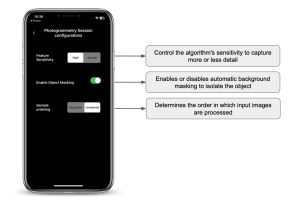
To receive updates and output data, we need to start observing the session’s outputs:
func startObserving(outputs: PhotogrammetrySession.Outputs) {
        Task { [weak self] in
            guard let self = self else {
                return
            }

            let outputs = UntilProcessingCompleteFilter(input: outputs)

            for await output in outputs {
                switch output {
                case .requestError(let request, let error):
                    if case .modelFile = request {
                        self.eventSubject.send(.failed(errorMessage: error.localizedDescription))
                    }

                case .requestComplete(_, let result):
                    switch result {
                    case .pointCloud(let pointCloud):
                        self.savePointCloud(output: pointCloud)

                    case .poses(let poses):
                        self.savePoses(output: poses)

                    default:
                        continue
                    }

                case .processingComplete:
                    self.saveCapturedImagesMetadata()
                    self.eventSubject.send(.completed(output: self.outputFolderUrl))
                    self.photogrammetrySession = nil

                case .processingCancelled:
                    self.photogrammetrySession = nil
                    break

                case .inputComplete:
                    break

                case .requestProgress(let request, let fractionComplete):
                    if case .modelFile = request {
                        self.eventSubject.send(.progress(value: Float(fractionComplete)))
                    }

                case .requestProgressInfo(let request, let progressInfo):
                    if case .modelFile = request {
                        let remainingTime = progressInfo.estimatedRemainingTime
                        self.eventSubject.send(.remainingTime(interval: remainingTime))

                        let processingStage = progressInfo.processingStage?.processingStageString
                        self.eventSubject.send(
                            .processingStage(description: processingStage ?? Strings.Reconstruction.processing)
                        )
                    }

                default:
                    continue
                }
            }
        }
    }
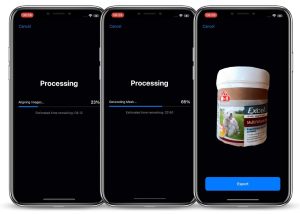
We can retrieve valuable information from the session outputs. This includes the current processing stage and the estimated time left for processing. This data helps improve user experience by providing real-time feedback on the 3D reconstruction progress.
By adding these insights to the user interface, we allow users to stay informed and engaged throughout the reconstruction workflow.
Once the 3D reconstruction process is done, ObjectCapture provides a range of detailed outputs. You can access or export these for further use:
1. 3D Model
The primary output is a high-quality 3D model of the scanned object or area, exported in USDZ format.
2. Bounds
The precise bounding box of the reconstructed object represents its size and spatial limits in 3D space.
3. Captured Images
All source images used during the photogrammetry session are preserved and can be exported for further processing, analysis, or archiving.
4. Image Metadata
Each captured image contains embedded metadata. This metadata can be extracted and saved separately as a text file.
5. PointCloud
A point cloud representing the key visual features identified during image alignment can be exported as a plain text file, which is helpful for 3D visualization or custom processing pipelines.
6. Poses
You can retrieve pose data for each captured image, including translation, rotation, and the extrinsic matrix. This information can be saved to a text file and used in custom processing or workflow analysis.
Comparison of 3D Reconstruction Solutions on iPhone and Mac
While you can now easily perform a full 3D reconstruction entirely on an iPhone, you can also carry out the photogrammetry process on a Mac.
The core photogrammetry APIs work on both platforms. However, differences in performance, output quality, and features can affect results and user experience based on the device.
The iPhone has notable limitations compared to macOS. Specifically, the iPhone version lacks support for:
- Multiple mesh types.
- Different detail levels.
- Custom detail specifications (e.g., maximum polygon count, texture format selection, output texture maps, etc.).
These advanced features are available on macOS. This makes the Mac version more flexible. It is better for workflows that need fine-tuning and enhanced control over the final output.
The diagram below showcases how the same set of images can lead to different results based on whether the 3D reconstruction is done on an iPhone or a Mac. This analysis helps developers decide where to run the reconstruction workflow in their apps or pipelines.
To evaluate the differences in performance and output quality, we ran a series of tests on two devices: an iPhone 13 Pro Max and a Mac mini M1 (8 GB RAM). The same image sets and reduced detail levels were used for every reconstruction task. We measured how long each device took to complete the 3D reconstruction on iOS.
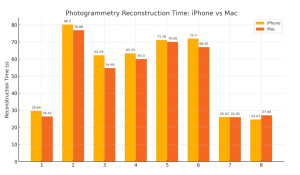
On average, the Mac performed about 4% faster than the iPhone. However, this average hides the fact that performance differences become especially noticeable when scanning larger areas, such as full rooms or complex interior spaces.
For small or single-object scans, the performance on iPhone and Mac was quite close. In some cases, the iPhone even performed faster.
This makes the Mac especially useful for workflows that involve room-scale reconstruction or larger environments, where processing time can grow significantly.
In these cases, the ability to process 3D reconstructions more quickly can improve productivity and reduce bottlenecks, especially in professional applications or iterative scanning tasks.
Regarding quality, both platforms produce visually and structurally similar results when working with simple objects. However, the Mac’s reconstruction results are often slightly better, especially in scenarios involving:
- Complex geometry.
- Fine surface details.
- Irregular or organic shapes.
This means that the iPhone alone is often sufficient and convenient for quick on-site scanning of simple objects, while the Mac can deliver better results for room-scale or complex object scanning.
3D Reconstruction on iOS: To Sum Things Up
ObjectCapture transforms 3D reconstruction on iPhones and iPads, replacing bulky desktops.
The ObjectCapture API simplifies the 3D reconstruction on iOS into a guided, user-friendly experience, allowing even beginners to produce high-quality 3D models effortlessly.
Object mode ensures precision for small objects, while Area mode offers spatial scanning of larger areas, architecture, or interiors. Despite fixed image formats and limited real-time frame access, it is ideal for AR solutions, product digitization, and more.
RoomCaptureSession excels in precise spatial mapping of large environments. Also, AVCaptureSession offers fine-tuned camera control for detailed object captures. Both these image acquisition methods require more management and setup but provide greater customization.
Thus, object-capturing tools empower programmers to enhance computer vision development services and 3D scanning apps on iOS across diverse use cases.
The general recommendation is to choose:
- ObjectCapture for quick, reliable models.
- RoomCaptureSession for spatial accuracy.
- AVCaptureSession for detailed reconstructions.
Ultimately, the choice of the technique depends on the desired outcome, whether it is creating high-quality 3D models of small objects, large environments, or anything in between.
ObjectCapture produces a dense textured mesh. That raw output still needs retopology, UV cleanup, and material refinement before it is usable in a game engine, product renderer, or manufacturing workflow. The same cleanup problems arise with AI-generated geometry. Our article AI 3D Generation: From Prototype to Production covers that post-processing pipeline in detail. Most of the same steps apply here.
Have you seen something inspiring in the article and come up with project ideas?
Let’s build it together and explore opportunities to integrate the latest technologies. Whether you want to improve your company operations or launch a new project, we can cover your business needs with cutting-edge solutions and add measurable outcomes.
Contact the It-Jim team for a consultation.
